Start speaking from the keyboard.
TapTalk opens the app recorder, runs local speech recognition, and inserts the result back into the current text field.
TapTalk adds a small writing layer to the iPhone keyboard. The bubbles are shortcuts for actions you can use in any app with a text field.
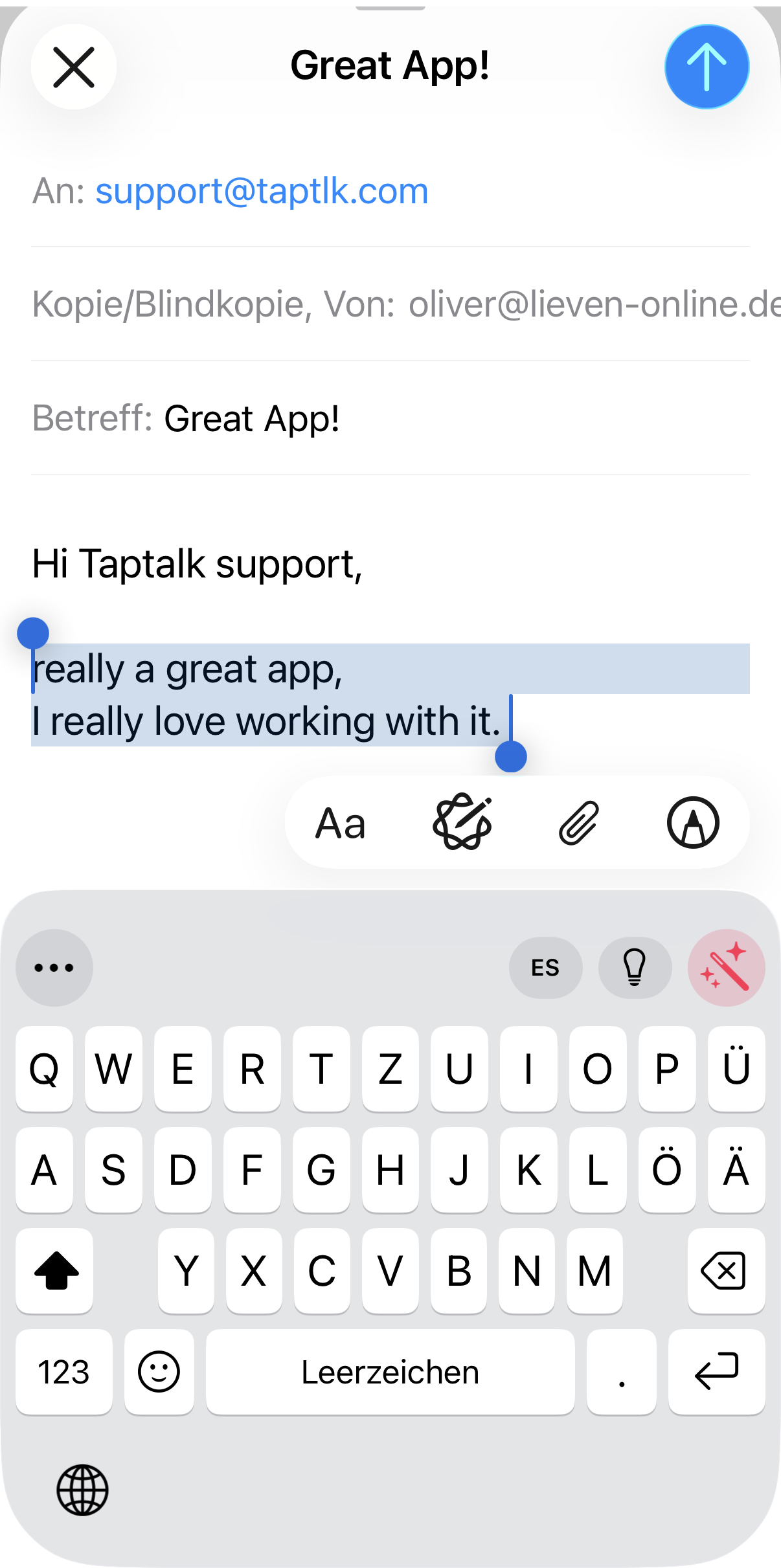
The visible bubbles can change depending on context, selected text, language settings, and the current app. They are designed for quick actions without leaving the place where you write.
TapTalk opens the app recorder, runs local speech recognition, and inserts the result back into the current text field.
Use Apple Translation for supported language pairs. With the required language package downloaded, translation can run on device.
Select text in the host app, then make it shorter, clearer, more professional, translated, or rewritten with a saved preset.
Reuse signatures, addresses, prompts, dates, clipboard values, and saved images without typing them again.
Save a thought from the keyboard when it does not belong in the current message yet.
Find recent dictations and inserted text, then copy, reuse, save, or delete entries.
TapTalk also uses small status pills to show when the app is ready, recording, processing, waiting for a model, or limited by Free/Pro usage. If a feature needs setup, the pill usually leads you to the right place.
The keyboard stays compact. The app is where you configure recognition, reusable text, language tools, and personal writing data.
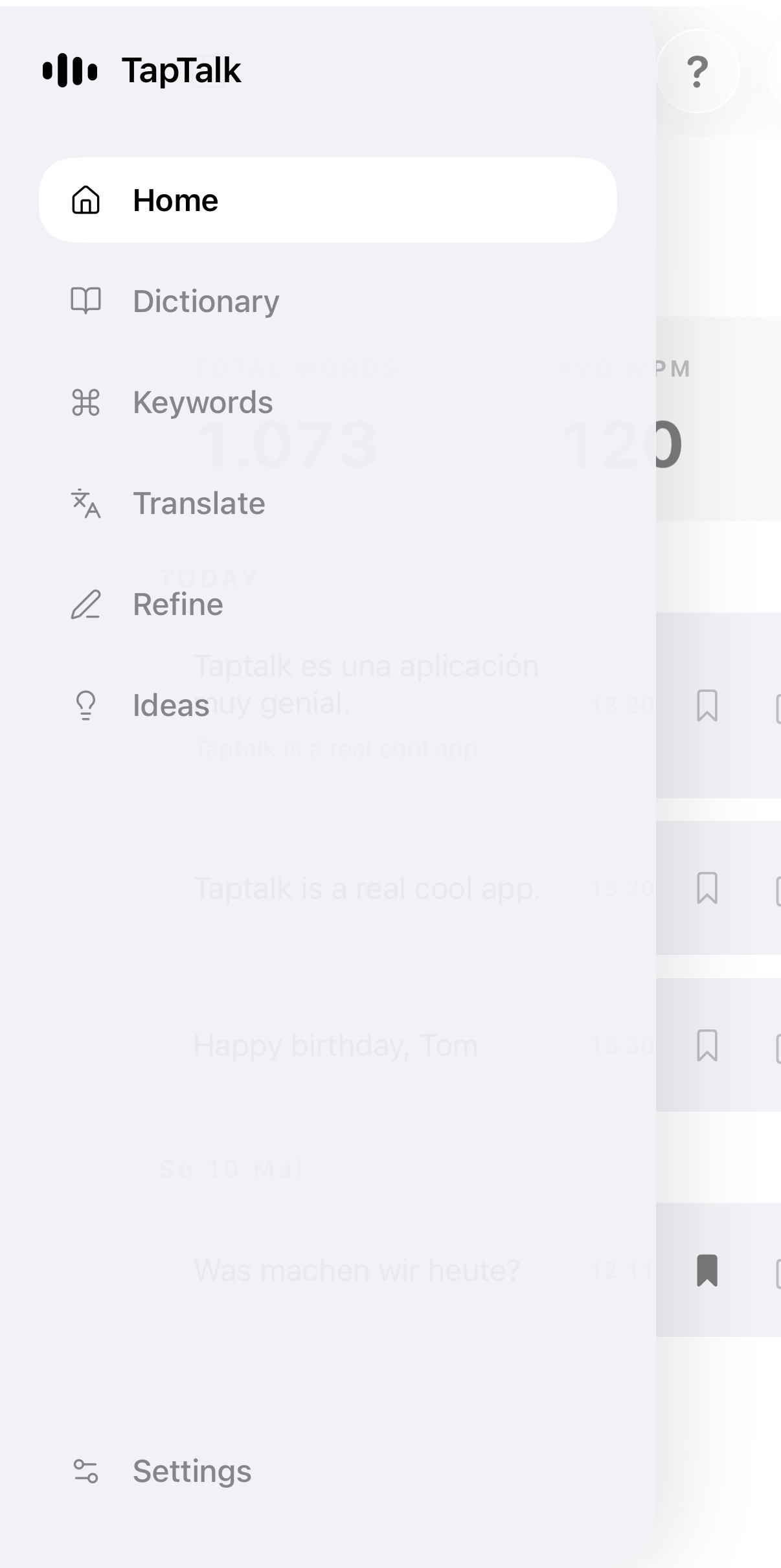
Dictation, history, keywords, ideas, dictionary entries, replacements, and settings are stored in the local iPhone App Group container. TapTalk does not run a cloud transcription pipeline.